
Why Do Custom Graphics Look Pixelated Online?

Last Updated: October 25, 2026
Quick Summary
Pixelated graphics happen when an image has fewer pixels than the space it needs to fill on screen, so the browser stretches what's there and smears the edges. Nearly every case traces back to one of five fixable causes, and the only true fix is re-exporting from the original design file at the exact pixel dimensions you need.
- Run the four-step diagnostic in order and stop at the first failure before changing any export setting.
- Image resolution for web graphics is measured in pixel dimensions, not DPI, which browsers ignore.
- Export at two times the largest CSS display size so high-density screens have pixels to spare.
- The best image format for logos is SVG because it stays sharp at every size and stays small.
- Upscaling a small image in Photoshop or an AI enhancer guesses at pixels and does not add real detail.
Table of Contents
- Why Custom Graphics Look Pixelated Online
- The Short Answer: Too Few Pixels for the Space They Fill
- A Practical Diagnostic Flow for Pixelated Custom Graphics
- How to Fix Pixelated Images: Step-by-Step
- Image Resolution for Web Graphics: What You Actually Need
- Raster vs Vector Graphics: Why It Decides Sharpness
- The Best Image Format for Logos and Custom Artwork
- Platform Upload Limits and High-Density Displays
- Ordering Custom Graphics That Stay Sharp
- Frequently Asked Questions
Why Custom Graphics Look Pixelated Online
Your cornhole board art looked razor sharp in the design file. Then you uploaded it, and now the edges are jagged and the text is fuzzy.
Pixelated graphics happen when an image has fewer pixels than the space it needs to fill on screen. The browser stretches what's there, and stretching is not creating. It copies and smears.
Nearly every case traces back to one of five causes, and all five are fixable. Below is a diagnostic flow you can run in about ten minutes, then the fixes for pixelated images at the source.
The Short Answer: Too Few Pixels for the Space They Fill
A screen is a grid of tiny lights, each one a pixel. If your image is 400 pixels wide but displayed across 1,200 pixels of screen, the browser has to invent 800 pixels that don't exist.
That process is called interpolation, and it always blurs. The image isn't broken. It's just outnumbered.
Three things make it worse:
- High-density displays pack more pixels into the same physical space, so they demand larger image files.
- Responsive layouts stretch a single image across many screen sizes, and the widest one sets the requirement.
- Browser smoothing softens edges by default, which turns sharp stair-steps into a general haze.
So the first question is never "is this image bad?" It's "how many pixels does this spot actually need?"
A Practical Diagnostic Flow for Pixelated Custom Graphics
Run this check before you blame the file or the printer. It takes four steps, in order, and stops at the first failure.
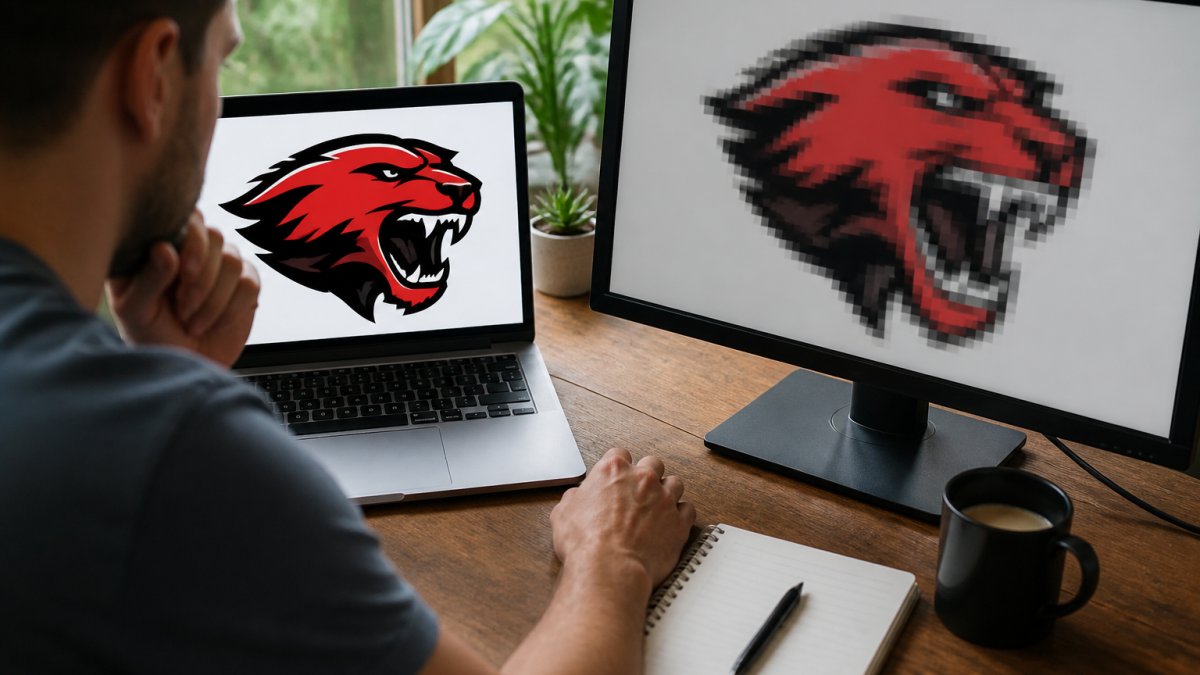
- Check the source file's pixel dimensions. Open the image and look at its actual width and height in pixels, not its file size in megabytes. A 2 MB file can still be 600 pixels wide.
- Compare those dimensions to the display size. If the graphic will render at 1,200 pixels wide and the file is 600 pixels wide, you've found the problem. Stop here.
- Zoom to 100% and inspect the edges. If the stair-steps exist in the file itself, the source is low resolution. If the file looks clean at 100% but blurry on the page, the browser is stretching it.
- Upload the file to the platform and re-check. Some platforms recompress on upload. If the image was sharp before upload and soft after, the platform is the culprit, not your design.
Watch out: the most common mistake is fixing the file when the real issue is step 2. Upscaling never adds real detail, and a correctly sized export solves in a minute what an hour of upscaling won't.
How to Fix Pixelated Images: Step-by-Step
Start with the least destructive fix and work down the list. Most people jump straight to upscaling, the weakest option.
- Re-export from the original design file. Open the source in Illustrator, Procreate, or your design app and export at the exact pixel dimensions you need. This is the only true fix.
- Resize down, never up. Shrinking a large image to fit is clean. Enlarging a small one is not. Resampling down discards pixels; resampling up guesses at them.
- Switch to a vector format if the artwork allows it. Logos, text, and flat shapes belong in vector. Vector graphic files scale to any size without losing an edge.
- Match the export to the display size. Export at the largest size the graphic will ever render, then let the browser shrink it. Browsers shrink well and enlarge badly.
- Test at 100% zoom before publishing. What you see at 100% is what the browser will show. Anything that looks soft there will look soft on the page.
If you're working in CSS or a site builder, image-rendering settings can change how the browser handles scaling, but they only change the look of the blur. They don't restore detail.
Image Resolution for Web Graphics: What You Actually Need
Image resolution for web graphics is measured in pixel dimensions, not DPI. A file tagged at 300 DPI with 500 pixels of width will still look pixelated on a large screen.
DPI and PPI describe how densely pixels are packed when something prints. On screen, only the pixel count matters: a 72 DPI file and a 300 DPI file with identical pixel dimensions display identically.
The number that actually matters is the CSS display size multiplied by the device pixel ratio.
Practical targets by graphic type:
- Full-width hero banners: at least 1,600 pixels wide, ideally 2,400 or more for high-density screens.
- In-content images: at least 800 pixels wide, or 1,600 for retina displays.
- Logos and icons: vector (SVG) whenever possible; if raster is required, export at two to three times the display size.
Raster vs Vector Graphics: Why It Decides Sharpness
A raster image is a grid of colored pixels. A vector graphic is a set of mathematical paths. (Including vector graphics in HTML - Learn web development) That difference decides whether your artwork survives scaling.
Raster formats (JPEG, PNG, GIF) are built from pixels, so they have a fixed maximum size and blur when stretched.
Which artwork should be vector?
- Logos and wordmarks
- Text-heavy designs
- Flat icons and simple shapes
Which has to be raster?
- Photographs
- Textured or painted artwork
- Designs with gradients, shadows, or fine detail
A common mistake is exporting a logo as a PNG at one size and reusing that file everywhere. Every new placement needs a new export, or better, the original vector.
The Best Image Format for Logos and Custom Artwork
The best image format for logos is SVG, because it stays sharp at every size and stays small in file size. For everything else, match the format to the job.
| Format | Best For | Transparency | Scales Cleanly |
|---|---|---|---|
| SVG | Logos, icons, text, flat art | Yes | Yes, unlimited |
| PNG | Graphics with transparency, sharp edges | Yes | No |
| JPEG | Photographs, textured artwork | No | No |
| Print-ready artwork, proofs | Yes | Yes, if vector-based |
Two export habits that prevent most problems:
- Export PNG for anything with hard edges and transparency. JPEG compression smears sharp boundaries, which is exactly what makes a logo look fuzzy.
- Keep the master file. Every re-export should come from the original vector or high-resolution source, never from a previously exported JPEG.
For artwork headed to a printer, ask what file type and pixel dimensions they want before you design. That one question saves a lot of rework.
Platform Upload Limits and High-Density Displays
Every platform treats your file differently after upload, and that second processing pass is where sharp source files go soft. Social networks recompress aggressively, site builders cap dimensions or convert formats, and email clients strip or shrink images.
Here's what actually happens on the platforms most custom-graphic sellers deal with, and what to do about it:
- Social networks (Facebook, Instagram, Pinterest). These platforms re-encode JPEGs and often downscale large uploads. Instagram historically capped feed images around 1,080 pixels wide, and Pinterest recommends vertical pins around 1,000 x 1,500 pixels. Upload at roughly twice the platform's display width so the recompression has pixels to spare, and avoid uploading a file that's already been compressed once.
- Marketplace and e-commerce listings (Etsy, Shopify, Amazon). These usually preserve your uploaded file better than social networks but impose their own dimension and file-size caps. Etsy recommends listing images at least 2,000 pixels on the shortest side; Shopify themes typically render product images at up to about 2,048 pixels wide. Export to the platform's recommended maximum rather than the minimum.
- Email clients. Many strip background images, block remote images by default, and downscale large inline images. Keep email graphics under about 600 pixels wide and export as PNG for logos and flat art.
High-density screens raise the bar further. A device pixel ratio of 2 needs twice the pixels in each direction, four times the total pixel count for the same area, so an image that's adequate on a standard monitor looks soft on a modern laptop or phone.
Check the platform's own documentation for current limits, but treat the numbers above as a starting baseline rather than a ceiling.
Ordering Custom Graphics That Stay Sharp
The gap between a preview and the delivered product usually comes down to resolution at the production stage.
Before you order, ask three questions:
- What pixel dimensions or file type do you need? Get a number, not "high resolution."
- Will you print from my file or re-export it? Re-exporting from a vector source is fine. Upscaling a raster file is not.
- What happens on textured or curved surfaces? Vehicle panels and cornhole boards aren't flat screens, and the production method matters as much as the file.
At Let's Print Big, every order is produced from high-resolution graphics, and products arrive weeded and masked with expert guidance and video tutorials so installation doesn't undo the print quality.
The frustrating part of pixelated graphics is that the file usually looks fine until it doesn't.
Frequently Asked Questions
Why does my graphic look sharp in a design app but blurry after uploading?
Design apps show the file at its native size, while websites display it at the size the page layout demands and then compress it. If your file has fewer pixels than the display space needs, the browser stretches them and edges turn fuzzy. Upload compression can add softness on top of that. Export at the pixel dimensions the site actually uses, keep the file under the platform's size limit, and check the result in a private browser window before publishing.
Can a low-resolution image be made sharp without recreating it?
Sometimes, but there are limits. Upscaling tools and interpolation can smooth edges, yet they cannot invent detail that was never captured. Small text and thin lines usually stay soft. If the source is a logo or line-based design, the reliable fix is to rebuild it as a vector graphic and export a fresh raster at the right size. For photos, start from the highest-resolution original you have and avoid repeated resizing, which compounds blur with every save.
What image resolution should I use for web graphics?
Match pixel dimensions to display size, then double them for high-density screens. A graphic shown at 600 pixels wide should be exported at 1200 pixels wide so it stays crisp on retina displays. DPI settings like 72 or 300 matter for print, not for screens; browsers read pixel dimensions only. For print products such as decals, murals, and cornhole wraps, follow the printer's DPI guidance at final size, since a wall mural needs far more pixels than a web banner.
Which file format is best for sharp logos and custom graphics?
Use SVG for logos and flat artwork that needs to scale cleanly on any screen. Use PNG when you need transparency or crisp edges on simple graphics, and JPEG for photographic images where small file size matters more than perfect edges. Avoid repeatedly re-saving JPEGs, because each save adds compression artifacts. Keep a master vector or high-resolution source file so every export starts clean rather than from an already-compressed copy.
